How to Install a Robot Vacuum Cleaner
Learn how to install and set up a robot vacuum cleaner for reliable daily cleaning. This guide covers docking, mapping, boundary setup, app configuration, and maintenance to help homeowners and pet owners get the most from their robotic helper.


In this guide you’ll learn how to install and set up a robot vacuum cleaner for reliable daily cleaning. You’ll prep the charging dock and power, place boundary markers, connect to Wi‑Fi, install the companion app, map your home, set schedules, and run a test clean. According to Vacuum Cleaner Guide, a thoughtful layout and a quick initial run boost long‑term results.
Planning your layout for robot vacuum installation
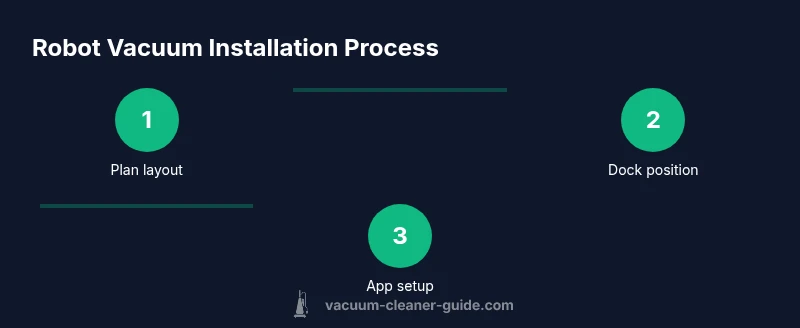
Before you ever power on the unit, map out the rooms you want to clean and the path the robot will take. Start by identifying the docking area: choose a location that is flat, near a wall, and away from stairs or cords. A central position helps the robot reach all rooms with minimal wall-following and recharging. If you have pets, place the dock in a corner that remains unobtrusive but accessible. Consider furniture arrangement and rug edges that could block sensors. Avoid exposing cables or small toys that might entangle the brushes. Plan boundary zones for rooms you want to exclude from daily cleaning, such as a child’s play area or a delicate rug. According to Vacuum Cleaner Guide, a thoughtful layout reduces the need for frequent manual intervention and yields cleaner floors faster. After choosing the dock and boundary zones, prepare the floor by removing obstacles and ensuring there is a clear exit path from the dock to each room.
Tip: Sketch a quick map on paper or in the app to visualize coverage and identify bottlenecks before you unbox.
Unboxing, charging, and initial checks
Unbox the robot carefully and lay out all components: the main unit, docking station, power adapter, boundary markers, and brushes/tools. Place the docking station on a hard, level surface with at least a 1–2 meter clear area in front of it to allow easy docking. Connect the power adapter and let the unit charge fully before the first use; many models require a couple of hours for a full initial charge. Inspect wheels, sensors, and brush guards for any debris from packaging. If your model supports a rapid charge feature, you can begin a short test run after a partial charge; otherwise, plan for a complete session after full charge. Safety: handle batteries and components with dry hands and avoid contact with liquid spills.
According to Vacuum Cleaner Guide analysis, fully charging before first use improves motor longevity and ensures an accurate initial map.
Connecting to Wi‑Fi and installing the companion app
Download the manufacturer’s app on your smartphone or tablet and create an account if you don’t already have one. Follow the on-screen prompts to connect the robot to your home Wi‑Fi network; most devices require a 2.4 GHz network for reliable communication. Grant the app the necessary permissions to access location, notifications, and camera if prompted. Once connected, the app will probe the robot’s status, show battery level, and offer guided setup for mapping, zones, and scheduling. Keep your device’s OS and app updated to avoid compatibility issues.
Pro tip: Use a dedicated phone for the robot’s control during setup to prevent cross-interference with other devices.
Mapping, boundary markers, and room zoning
With the app connected, initiate the mapping process. Allow the robot to roam and scan walls, doorways, and furniture; mapping may take several minutes and may require a couple of passes for complex layouts. Place boundary markers or use virtual walls to exclude off-limit areas like pet feeding zones or fragile rugs. Define room boundaries within the app to optimize cleaning paths and enable selective room cleaning. If your robot supports it, enable “no-go lines” to prevent entry into stairwells or cluttered corners. Review the generated map and adjust zones if necessary. Regularly update maps after furniture rearrangements so future cleans stay efficient.
Note: Keep floors clutter-free during the first map to ensure sensor accuracy and faster learning.
Running a test clean and adjusting settings
Start with a conservative cleaning cycle to verify everything is functioning correctly. Observe edge cleaning, obstacle avoidance, and docking behavior. If the robot misses sections or collides with furniture, revisit the map and boundaries in the app, adjust the placement of the dock, or redefine no-go zones. Experiment with cleaning modes, suction power, and brush settings to suit your floor types—carpets, hard floors, and area rugs require different configurations. Save a preferred schedule and test it at different times of day to ensure reliability across lighting and household activity. After the test, review battery usage and cleaning time per room to fine-tune future runs.
Practical tip: run a practice cycle during daylight so you can supervise and learn the robot’s navigation quirks.
Maintenance and safety considerations after installation
Perform routine maintenance to sustain peak performance: empty the dustbin, clean filters, and wipe sensors weekly; check brushes for hair wrap and clear tangled threads. Replace filters and brushes per the manufacturer’s recommendations to maintain suction and air quality, especially if you have pets. Keep the charging dock in a clean, obstruction-free area and ensure the docking cables are tidy to prevent tangling. Store boundary markers and re-check maps when major household changes occur, such as new furniture or visitors with large pets. Safety-first mindset reduces the risk of damage to furniture, stairs, or the robot itself.
Vacuum Cleaner Guide emphasizes that ongoing maintenance is key to long-term reliability and consistent cleaning results.
Common pitfalls and how to avoid them
Common pitfalls include ignoring the initial mapping, placing the dock in a cramped area, and overloading the dustbin with pet hair. Avoid placing the dock near staircases, radiators, or vents that disrupt airflow and navigation. Don’t rely on a single pass for a complete map—allow the robot to learn multiple trajectories. Ensure the robot has a clear path to return to the dock after a cleaning cycle, or it may end up stuck mid-charging. Finally, keep the app updated to receive the latest mapping algorithms and bug fixes. Following these best practices helps ensure a smooth setup and dependable performance.
Quick-start recap from Vacuum Cleaner Guide
The key to a successful installation is thoughtful layout, proper docking placement, and accurate mapping. Revisit boundary zones after furniture changes and periodically retrain the map to accommodate household activity. With consistent maintenance and scheduling, a robot vacuum cleaner becomes a reliable ally for pet-friendly homes.
Tools & Materials
- Robot vacuum cleaner (unit)(Fully charged before first use)
- Charging dock with power adapter(Place on a hard, level surface in an open area)
- Boundary markers or virtual wall barriers(To restrict access to off-limit zones)
- Smartphone or tablet with the app installed(iOS or Android; ensure permissions granted)
- Stable 2.4 GHz Wi‑Fi network(Some models require 5 GHz off or limited support)
- Clear floor space for mapping(Remove cords, small objects, and loose rugs during setup)
Steps
Estimated time: 60-90 minutes
- 1
Unbox and place the docking station
Unbox the robot and docking station, then place the dock on a flat, open area near a wall. Ensure at least 1–2 meters of clearance in front of the dock so the robot can dock smoothly. Connect the power adapter and power on the dock to begin charging.
Tip: Keep the dock away from high-traffic walkways to prevent collisions during docking. - 2
Charge the robot to full before first use
Allow the robot to charge until the indicator shows full capacity. A full charge helps the mapping process learn faster and ensures a complete initial clean. If the battery level is insufficient, plan a second charging session before starting a map.
Tip: Initial mapping benefits from a fully charged battery to avoid mid-map interruptions. - 3
Install and open the companion app
Download the brand’s app, create an account, and sign in. Grant necessary permissions (location, notifications) and enable auto-updates for the app. The app will guide you through device pairing and basic setup steps.
Tip: Use a dedicated device for setup to minimize interruptions from other apps. - 4
Connect the robot to Wi‑Fi and sign in
Select your 2.4 GHz network in the app and enter the password. If prompted, update the robot’s firmware to the latest version. After connecting, the app will display the robot’s status and guide you to map the space.
Tip: If your network has guest access, disable it temporarily during setup to prevent disconnection. - 5
Place boundary markers and define no-go zones
Place boundary markers at doorways or furniture edges to exclude those areas from daily cleaning. In the app, draw no-go lines to protect stairs, pet bowls, and delicate rugs. This step helps the robot navigate more efficiently and safely.
Tip: Re-check boundary markers after rearranging furniture for continued accuracy. - 6
Run initial mapping and a test clean
Start the mapping run and allow the robot to explore. Review the generated map, adjust zone boundaries as needed, and perform a test clean in a small area to verify sensor responses and navigation.
Tip: Watch the robot for the first few minutes to catch any navigation quirks and intervene if necessary. - 7
Adjust settings, schedules, and modes
Set preferred cleaning modes (auto, spot, edge), suction levels for different floor types, and daily schedules. Ensure zones align with your typical cleaning needs and pet areas. Save these preferences for routine use.
Tip: Prefer a gentle mode for high-traffic areas and a deeper mode for carpeted zones. - 8
Maintain and re-map as needed
Periodic maintenance includes emptying the dustbin, checking filters, and clearing hair from brushes. Re-map after major furniture changes to keep cleaning effective and predictable.
Tip: Schedule a quick maintenance reminder weekly to prevent build-up.
FAQ
What is the first step to set up a robot vacuum?
Begin by choosing a docking location and unboxing the unit. Ensure the dock is on a flat surface with ample clearance and connect the charger. Then proceed to charging and app setup.
Start by selecting a docking spot, unbox, charge, and then set up the app.
Do robot vacuums require Wi‑Fi?
Many models rely on Wi‑Fi to access mapping, scheduling, and firmware updates. If Wi‑Fi is unavailable, you can still use basic cleaning in offline mode, but plans and maps may be limited.
Most robots need Wi‑Fi for maps and schedules; offline use may be limited.
Should I use boundary markers?
Yes. Boundary markers or virtual walls help keep the robot out of stairs, pet areas, or delicate spaces. Place markers at entry points to rooms you want to exclude from cleaning.
Boundaries help protect stairs and sensitive zones during cleans.
Why is mapping important?
Mapping creates an efficient cleaning path and enables room-specific scheduling. It reduces missed spots and helps the robot navigate around obstacles more smoothly.
Mapping makes cleaning faster and more complete.
Is it safe to run on stairs?
Robots are designed to avoid stairs, but always use boundary markers and keep stair edges clear. If your model has cliff sensors, ensure they are enabled in the app.
Yes, but use boundaries and supervise the first runs near stairs.
How often should I perform maintenance?
Check and clean brushes weekly, replace filters as recommended, and re-map after substantial furniture changes or rug updates. Regular maintenance helps preserve suction and sensor accuracy.
Regular maintenance keeps your robot vacuum performing well.
Watch Video
The Essentials
- Plan your layout before unboxing.
- Place the dock in an open, accessible area.
- Map accurately, define boundaries, and schedule cleans.
- Run a test clean and adjust settings after the first cycle.